Lesson 3: RStudio Orientation
This lesson will introduce and orient you to the RStudio integrated development environment.
RStudio settings
The first thing we recommend you do when you use RStudio for the first time is to change some of the default settings. Access these settings by clicking on Tools (top menu bar) then Global Options.
Uncheck “Restore most recently opened project at startup,” “Restore previously open source documents at startup,” and “Restore .RData into workspace at startup.” Also set “Save workspace to .Rdata on exit to ‘Never.’”
These settings ensure that when you restart RStudio, you will be starting with a fresh session and will help keep code from your various projects separate.
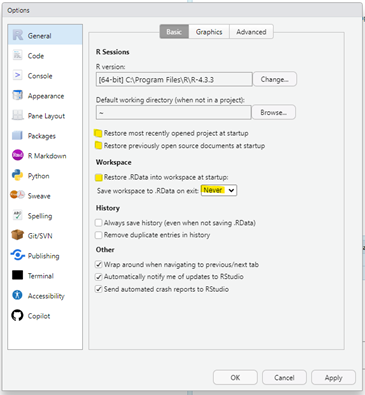
While you’re in settings, you can change the fonts, colors, and layout used in RStudio, so feel free to click around the Appearances tab if you want to be a cool (super-nerdy) coder.
RStudio Projects and the working directory
We strongly recommend that you use RStudio Projects to help keep code, data, and output from different work projects separate. Using a project-based workflow means that all files for a single project are stored within a project folder.
To create a project, select the Project menu in the upper right corner of RStudio and select “New Project.” Next, select “New Directory” and then “New R Project.” Finally, choose a directory name (avoid special characters and spaces) and select “New Project…”
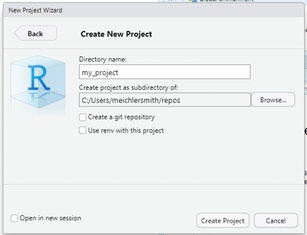
A new session of R will load, and you’ll see the project name in the upper right corner of RStudio. Once you close RStudio, you can re-open the project either by double clicking on the .Rproj file in your file browser or by selecting it from the Project menu in the upper right corner of RStudio.

An important aspect of RStudio Projects is that when you open a project, the current working directory is set to the project folder. A working directory is the directory of a file system that is active or current. Code that is executed is run in the working directory, and file names or paths are defined relative to this current working directory.
For example, let’s say you have a folder called my_project_folder that contains three files. Without setting the working directory, if you wanted to import the data.csv file, you would have to use the full file path, such as C:/User/Documents/my_project_folder/data.csv. However, if you set the working directory to my_project_folder, you can simply refer to data.csv, and the correct file will be returned.
my_project_folder
├── data.csv
├── my_script.R
└── output.pdf
By using RStudio projects, all file paths in an RStudio project are relative to the main project folder. While this may seem like an unimportant detail, using a separate RStudio Project for each of your projects will save you lots of headaches down the road and help keep your files organized and reproducible. This is not only convenient for you as a user, but also makes it easier to share projects and code with collaborators working on different computers.
RStudio panes
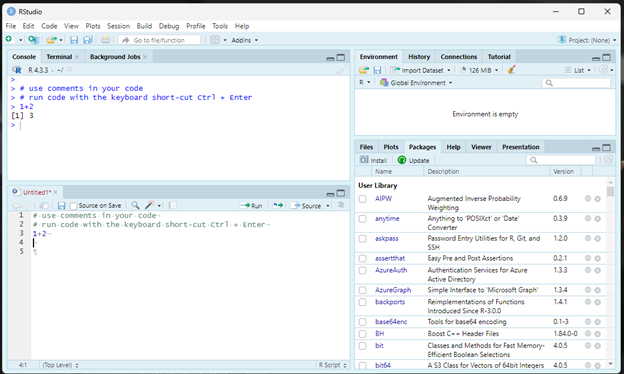
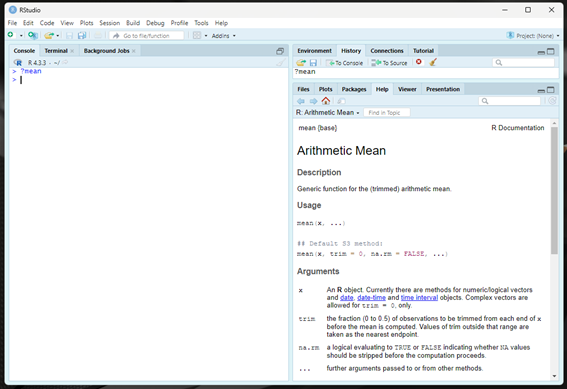
When you open RStudio, you will see three panes or sections. The large pane on the left is the console. The top right window contains the environment and history tabs. The bottom right pane contains the packages, files, and help tabs. There are other tabs on all the panes that are not needed for learning R. Feel free to poke around and explore them later!
Console
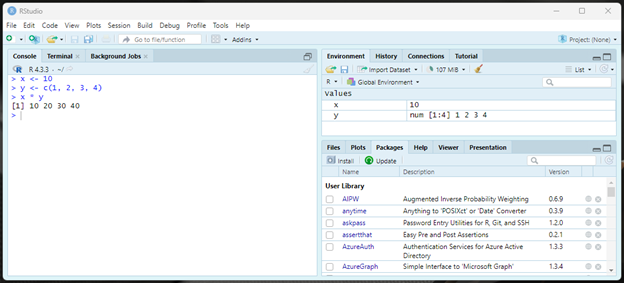
The Console is where R code is executed. You can test the Console as a calculator and assign values to variables.
Source
When we use R, we will almost always be using R scripts to save code that is then executed, rather than typing code directly in the Console. To open a new script, click File > New File > R Script. This will open a blank script (Untitled1) in the upper left pane. This is called the “Source” pane because this is where you will write and save all your code or source files. Try typing a simple command into Untitled1:
1 + 2To run or execute this line of code, while your cursor is somewhere on that line of code, press Ctrl + Enter. This “sends” the current line of code from the Source pane to the Console pane, and you should see both 1 + 2 and the output (3) in the Console. Get used to this shortcut because once you start working in R, you will be pressing Ctrl + Enter hundreds of times a day!
Environment
The Environment tab in the upper right pane shows objects that have been created or imported into your session. The Environment includes all named objects such as variables, datasets, or functions. The Environment tab is a useful reminder of what data and variables currently exist in your R session. You can also view a dataset by clicking on the name of a dataset in the Environment tab.
History
The history of all commands executed in the Console is saved in the History tab in the upper right pane. If you want to remind yourself what code you have run recently, you can browse this history. Alternately, with your cursor in the Console, press the up arrow on your keyboard to cycle through the history of commands executed.
Files, Plots, Packages, and Help
The lower right pane includes the Files tab, which is like your operating system File Explorer. From this tab, you can view and open R scripts, data, or other files in your project folder. You can also create new folders or files and reorganize files from this tab.
This pane also includes the Plots tab, which is where graphical output from R will be viewed (are you excited to make charts in R?). The Packages tab lists the R packages currently installed on your computer. The next lesson will discuss R packages in more detail.
The lower right pane also includes a Help tab. This tab will display documentation and help files related to functions and packages. You can search for a given topic using the search bar or use shorthand in the Console. If you want to look at documentation for a specific function, type a single question mark and the name of the function and press Enter.
Resources
- Download R from the Comprehensive R Archive Network: https://cran.r-project.org/
- Download RStudio from Posit: https://posit.co/download/rstudio-desktop/
- RStudio User Guide: https://docs.posit.co/ide/user/ide/get-started/