install.packages("quarto")Lesson 21: Literate Programming
Introduction
Literate programming is the practice of mixing prose and code in a single document. Chunks of code, plots, and output are interlaced with text, and the text often explains the analyst’s ideas and thoughts. As described in R for Data Science, literate programming has three key purposes:
- Communicate results to decision-makers.
- Collaborate with other data analysts.
- Be an environment in which to conduct data analysis and capture the reasoning behind the code.
By extending these concepts, you can also create templates for reproducible and automated reporting so that you can easily update data, text, and visualizations to match new data or new time periods.
The concept of literate programming traces back to 1980s, but more recently the concept has been implemented in computational notebooks such as Jupyter Notebooks, R Markdown, and Quarto. You can think of these as modern-day lab notebooks, where you can explore data and ideas iteratively and interactively and then save the entire notebook, with code and output for others (or a later version of yourself) to review.
Quarto
Quarto is the most recent iteration of these literate programming platforms and works seamlessly with R, Python, and other programming languages. One of the best features of Quarto is that it has built-in templates to generate websites, books, PDF reports, and more. To get started using Quarto in RStudio, first install the quarto package.
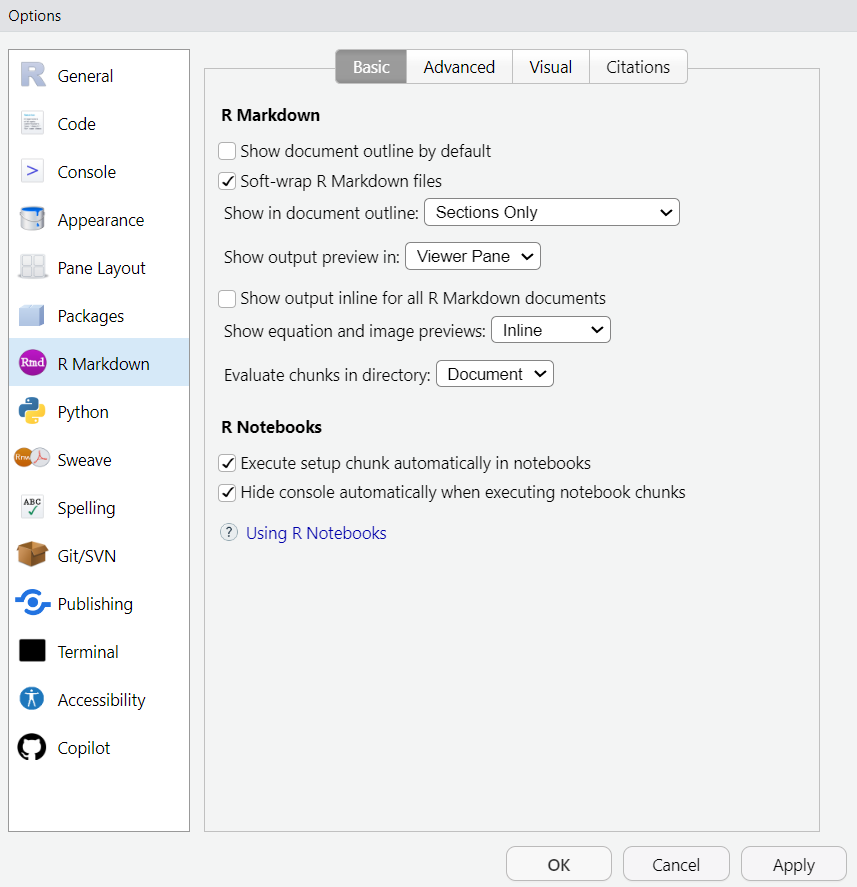
Next, change a couple of the default RStudio settings. Click Tools > Global Options. Next, click R Markdown on the left side of the Options panel. Set “Show output preview in:” to “Viewer Pane” and uncheck “Show output inline for all R Markdown documents.”
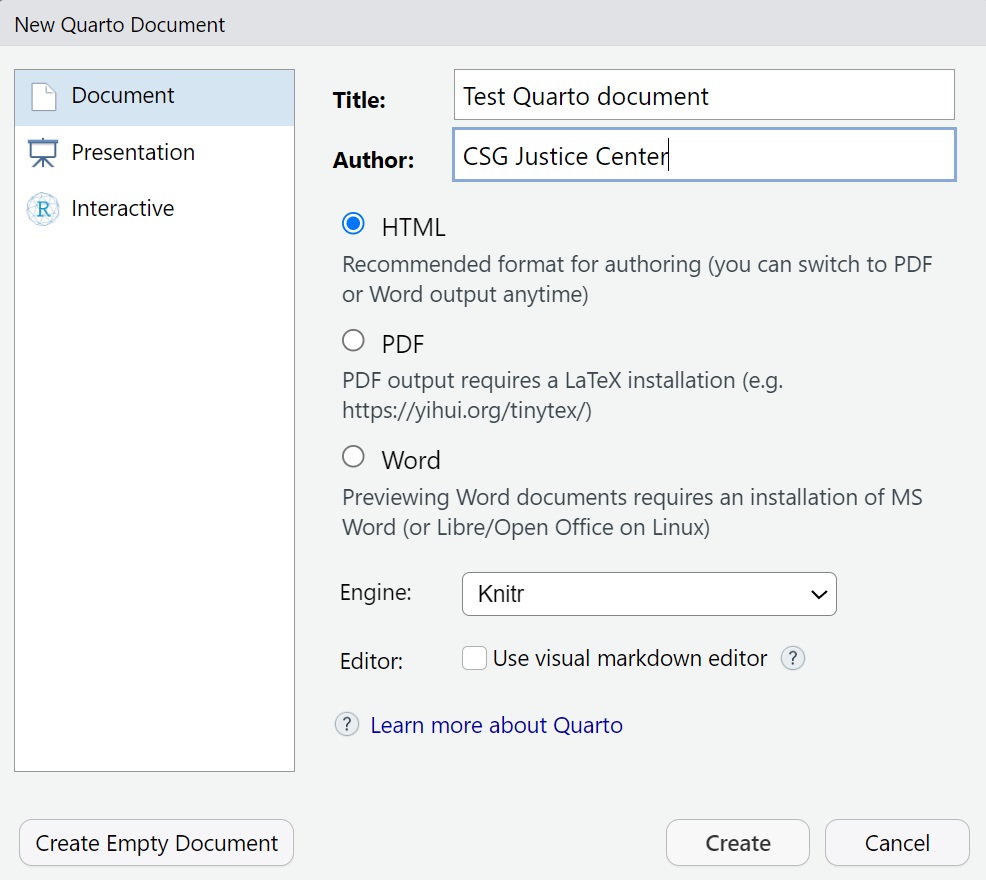
Now you’re ready to start a new Quarto document by using the menu in the upper-right corner of RStudio. Click File > New File > Quarto Document. From here, write a title of the new Quarto document, for example “Test Quarto document,” and add your name to the author field if you like. If it’s checked, uncheck the “Use visual markdown editor” option and click Create.
This will open a new Quarto document with some demo content. Before modifying any content in this Quarto document, check to make sure you can render it. Rendering means converting the Quarto document into an output format—in this case, HTML. One way to render is to click the Render button above the RStudio Source pane. Alternately, use the keyboard shortcut Control + Shift + K to render. When you attempt to render for the first time, RStudio will prompt you to save the Quarto file. Save it as test-quarto.qmd. If the document rendered correctly, you’ll see an HTML version displayed in the Viewer pane on the right side of RStudio. If you’ve used R Markdown before, you may have used the knitr package to “knit” files to HTML or PDF. Rendering a .qmd file is essentially the same as knitting an .Rmd file.
qmd is the file extension that refers to Quarto files.
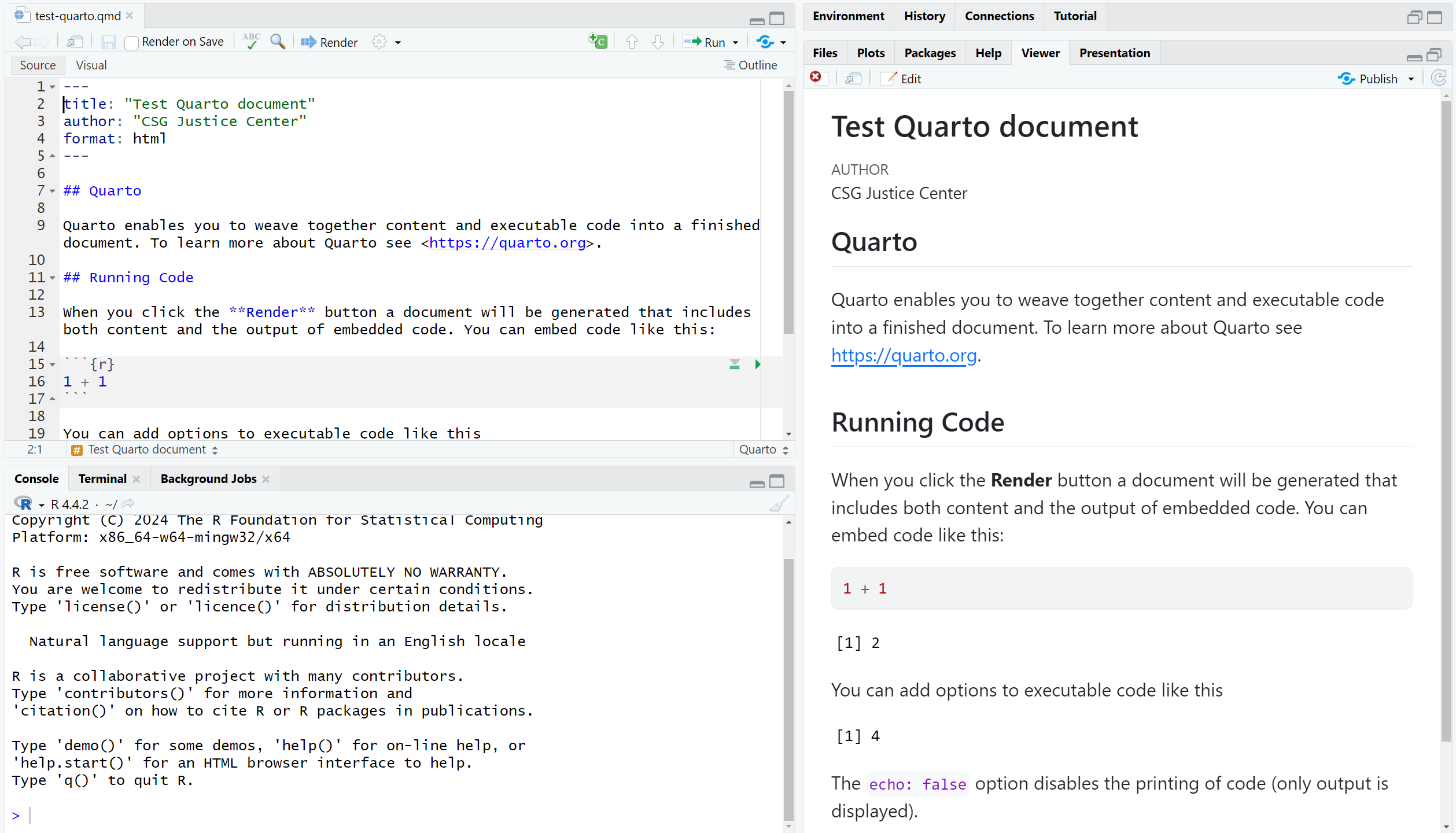
The following sections describe elements of Quarto files and how to use them.
YAML header
The block of text at the top of the Quarto document that includes the title, author, and other document settings is called the YAML (yet another markup language) header. The YAML header is set off by three dashes at the top and bottom (---), and fields are set with their name and the value, separated by a colon.
---
title: "Test Quarto document"
author: "CSG Justice Center"
format: html
---
There are many possible options to set in the YAML header—generally these deal with document metadata as well as themes and other customizations. The full list of the YAML options for HTML documents is in the Quarto documentation.
Code chunks
In prior lessons, you’ve used R scripts to write, save, and execute code. These scripts are essentially plain text files, and everything you write anywhere in an R script is assumed to be R code. Quarto is different because you can mix prose and code. To indicate that you are writing R code, you need to create a code chunk. A code chunk starts with three back ticks (```) and then {r}, which indicates the code that follows is R code. End a code chunk with three more back ticks. Any R code that you write in a code chunk will be executed when the document is rendered, and output is included in the Quarto document.
Quarto can also execute code in other languages such as Python, SQL, and Julia.
```{r}
a <- 2
b <- 3
a + b
```
[1] 5Code chunks in a Quarto document are run sequentially, so any objects that you have created in previous chunks can be used in future chunks. Here, you can multiply a and b and the values you’ve assigned in the previous code chunk are retained.
```{r}
a * b
```
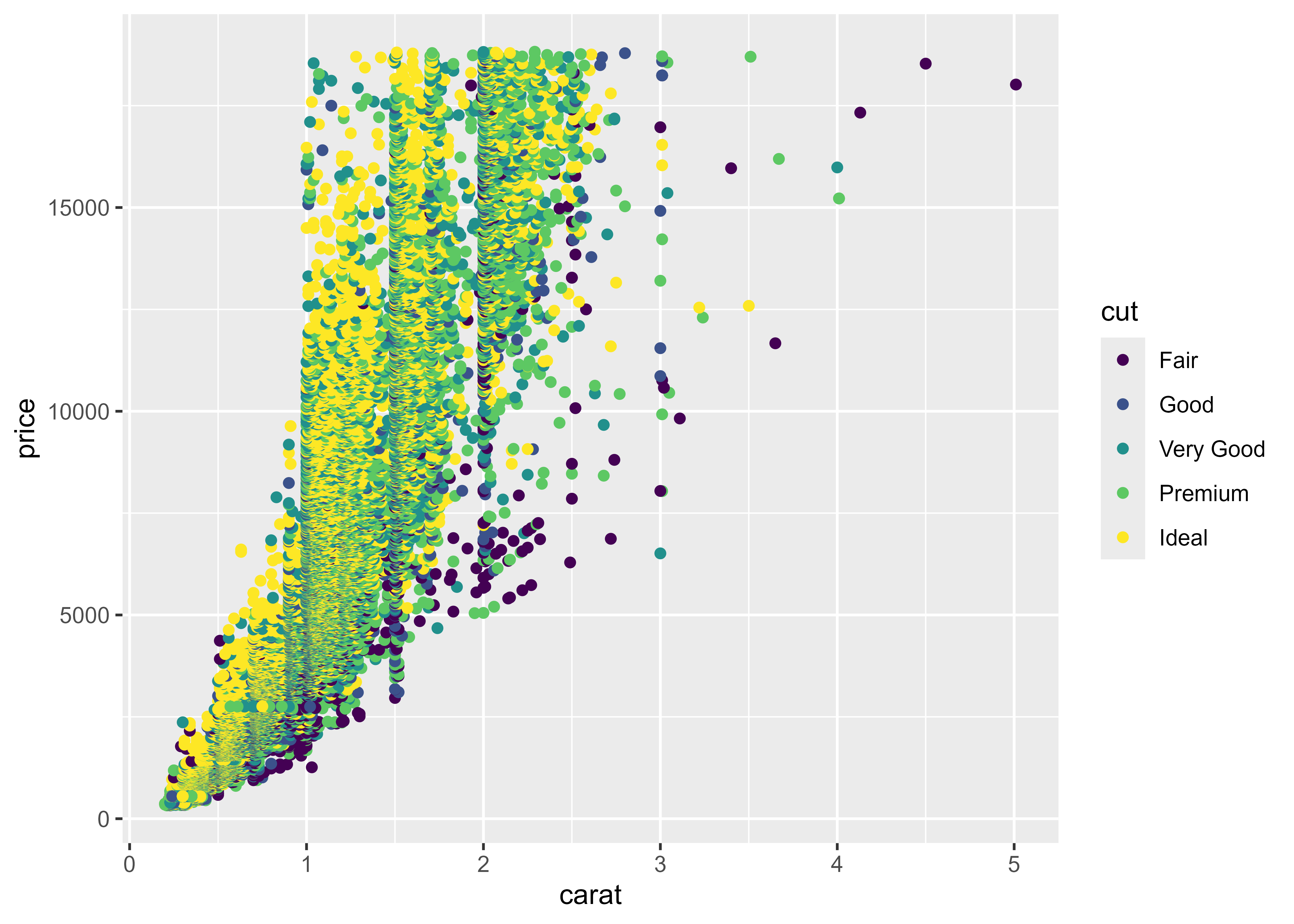
[1] 6Visual output, such as plots are also displayed in Quarto documents. For instance, this ggplot2 code will generate the following plot.
```{r}
library(ggplot2)

diamonds |>
  ggplot(aes(carat, price, color = cut)) +
  geom_point()
```
Inline code
In addition to including code in code chunks, you can also execute inline code within text. This is a useful feature if you want to include the results of computation in your document. Instead of writing the numbers manually, you can assign the result to a variable and then print that variable inline. This makes it so that if the data or calculations change, you don’t have to then manually change the text of your documents.
Imagine you have data and code that calculates the average length of stay in a facility. Here, that average is assigned to the object avg_los.
```{r}
los <- c(55, 17, 22, 24, 37)
avg_los <- mean(los)
```
To use the value of avg_los in a sentence, enclose the expression in back ticks and start with {r} to indicate that the value comes from the R environment in Quarto. So, if you write “The average length of stay was `{{r}} avg_los` months” in your Quarto document, the resulting text when rendered will read: The average length of stay was 31 months.
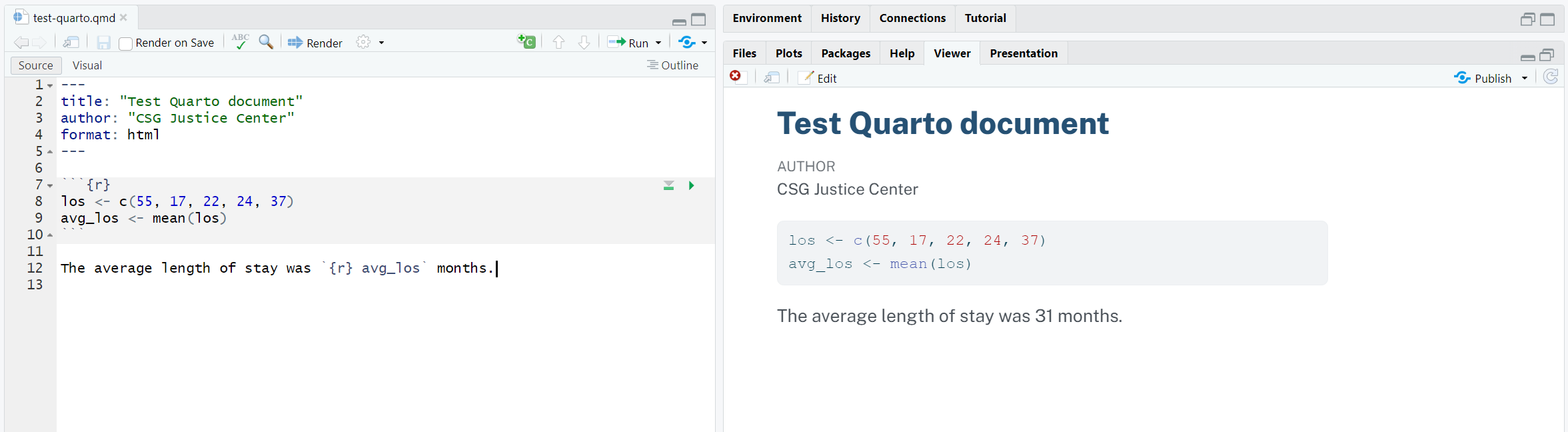
This becomes a very powerful tool when used to create automated reports that you render on a regular cadence. The text will always stay up to date with the data and plots.
Markdown
The structure of a Quarto document and the formatting of the prose is controlled by syntax called Markdown. Markdown is a plain text format that makes it simple to format documents. All the formatting is controlled inline with additions to the script, rather than with a menu as in Microsoft Word. You don’t have unlimited control over formatting as you might in word processing software, but most things you need to do are possible.
Markdown Guide is a great resource for learning additional Markdown syntax for formatting documents. The tables below show some basic Markdown formatting options.
Text formatting
| Markdown Syntax | Output |
|---|---|
|
italics |
|
bold |
|
verbatim code |
Headers
| Markdown Syntax | Output |
|---|---|
|
Header 1 |
|
Header 2 |
|
Header 3 |
Links and images
| Markdown Syntax | Output |
|---|---|
|
Quarto |
|
|

Output formats
A very useful feature of Quarto is that with a single Quarto source document, you can generate output documents in multiple formats. You can create HTML or web-formatted documents, Microsoft Word documents, PDFs, and more. In fact, the entire reference text for this course was created using Quarto rendered to HTML.
To change the format of a Quarto document, set the format in the YAML header. By default, the format is set to html, but you can change the format to docx to create a Word document or pdf to create a PDF. Note that rendering to PDF may require you to install additional software. The Quarto website has more information about PDF rendering.
---
title: "Test Quarto document"
author: "CSG Justice Center"
format: docx
---
This is powerful because a single Quarto document can be used to generate different kinds of output. For example, some people in your organization may want to review your document as a Word file so they can leave comments and track changes. For these people, you can use Quarto to render to Word. But perhaps the final version of the document is going to be posted on a website in HTML format. After you’ve edited to the Quarto source document, you can then set format: html to render the same document as an HTML file!
There are many more Quarto formats including presentations, books, and websites. Chapter 29 of R for Data Science discusses how to use these additional formats.
The next (and last!) lesson of this course brings together many of the skills and tools you’ve developed in this course to create a Quarto report.
Resources
- R for Data Science (2e), Chapter 28 Quarto: https://r4ds.hadley.nz/quarto.html
- R for Data Science (2e), Chapter 29 Quarto formats: https://r4ds.hadley.nz/quarto-formats.html
- Quarto Tutorial: Authoring: https://quarto.org/docs/get-started/authoring/rstudio.html
- CommonMark Markdown tutorial: https://r4ds.hadley.nz/workflow-help
- Markdown Guide Basic Syntax: https://www.markdownguide.org/basic-syntax/